Search a Product's Price From a Photo
You have a photo of a product — maybe you saw it in a store, at a friend's place, or online — but you don't know its name, brand, or where to buy it. Here's how to identify it, compare real prices, and buy it at the real store, starting from just the picture.
One way to do this is with PriceLens: a mobile app that recognizes a product from a photo, compares its real price across stores, and lets you go straight to the store that has the price you want. Here's exactly how it works.
1. Take or choose a clear photo
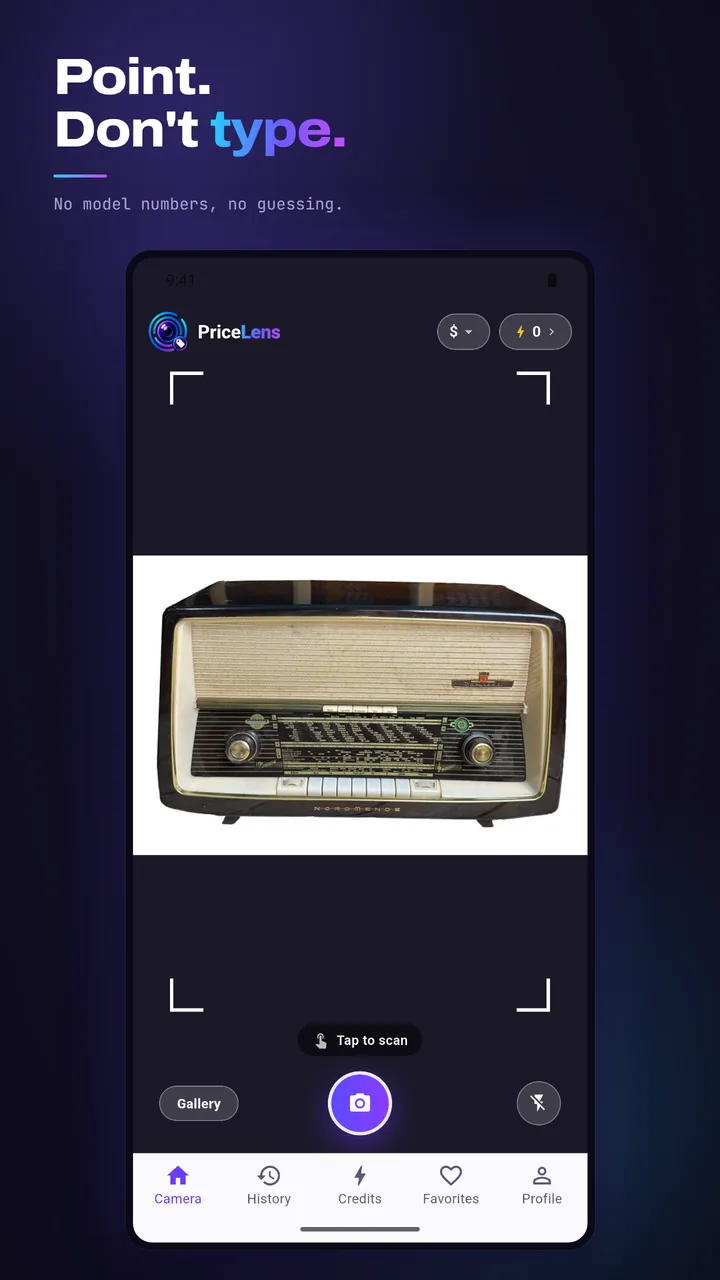
Open PriceLens and either take a photo with your camera or pick one you already have saved in your gallery. Before searching, you can crop the image so the product fills more of the frame; this is optional, but it can help if the product is small in the original photo.
2. Let AI identify the product
PriceLens analyzes the photo and identifies the product — its brand and model when they're visible, along with its general type. It works from what's actually shown in the picture: a visible brand, model information, or text on the item, as well as the product's overall visual details and appearance. Even without readable text or a visible brand marking, PriceLens can sometimes identify a likely brand or model from the product's visual appearance alone — although this isn't always possible. When a specific brand or model can't be identified, PriceLens can still identify the general type of product and search on that basis.
3. Find matching store prices
Once the product is identified — including its brand and model when possible — PriceLens searches online stores for that specific item and gathers real prices currently listed for it. These are actual store listings, not estimates — but store inventory and pricing change constantly, so treat results as a snapshot of what was listed at the time of your search, not a permanent price.
4. Compare the prices
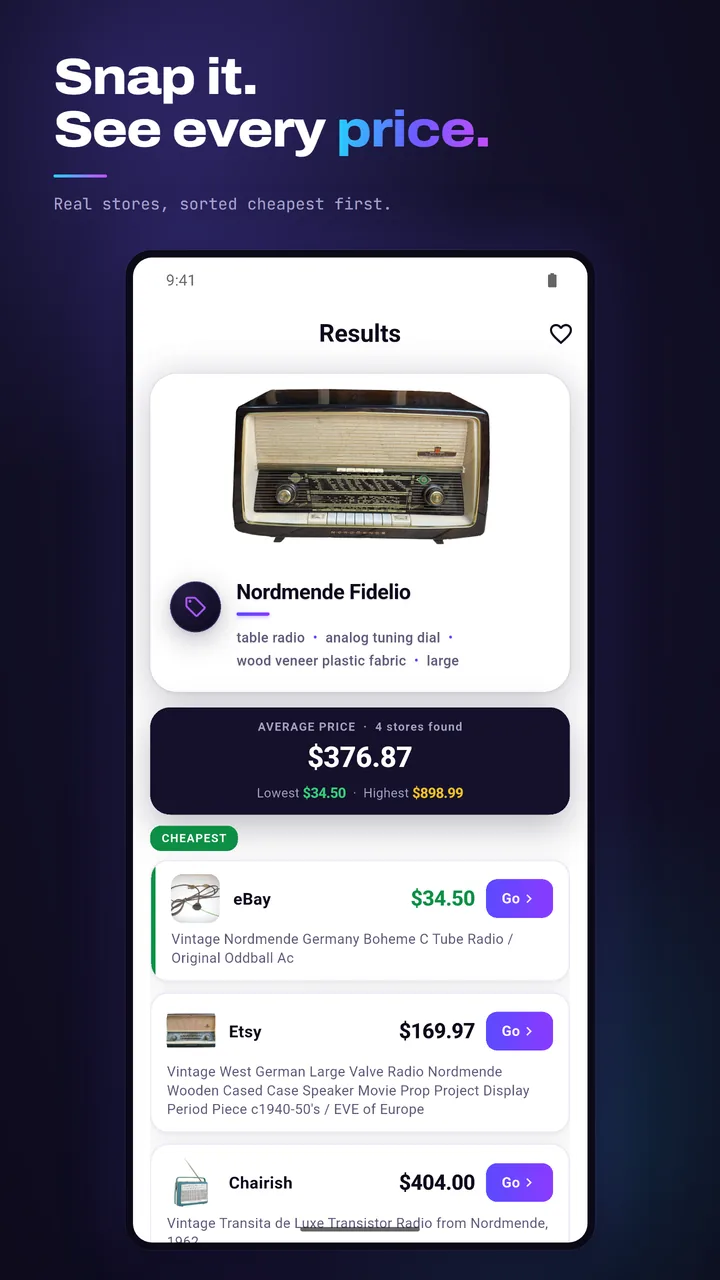
Results are sorted from cheapest to most expensive, so the lowest price is always at the top. PriceLens also shows a quick summary — the lowest, highest, and average price across the results — so you can see the price range at a glance before checking individual listings.
5. Go to the store when you're ready
PriceLens doesn't sell anything itself. Once you find the result you want, you can open that store listing and continue directly to the store's own page to complete the purchase there.
6. No barcode or typing required
Unlike traditional price-comparison tools, PriceLens doesn't need a barcode, a product name, or any typing at all. The photo itself is the search — which is exactly what makes this useful in the situation this guide started with: when you don't know what the product is called.
7. Results can appear while the search is running
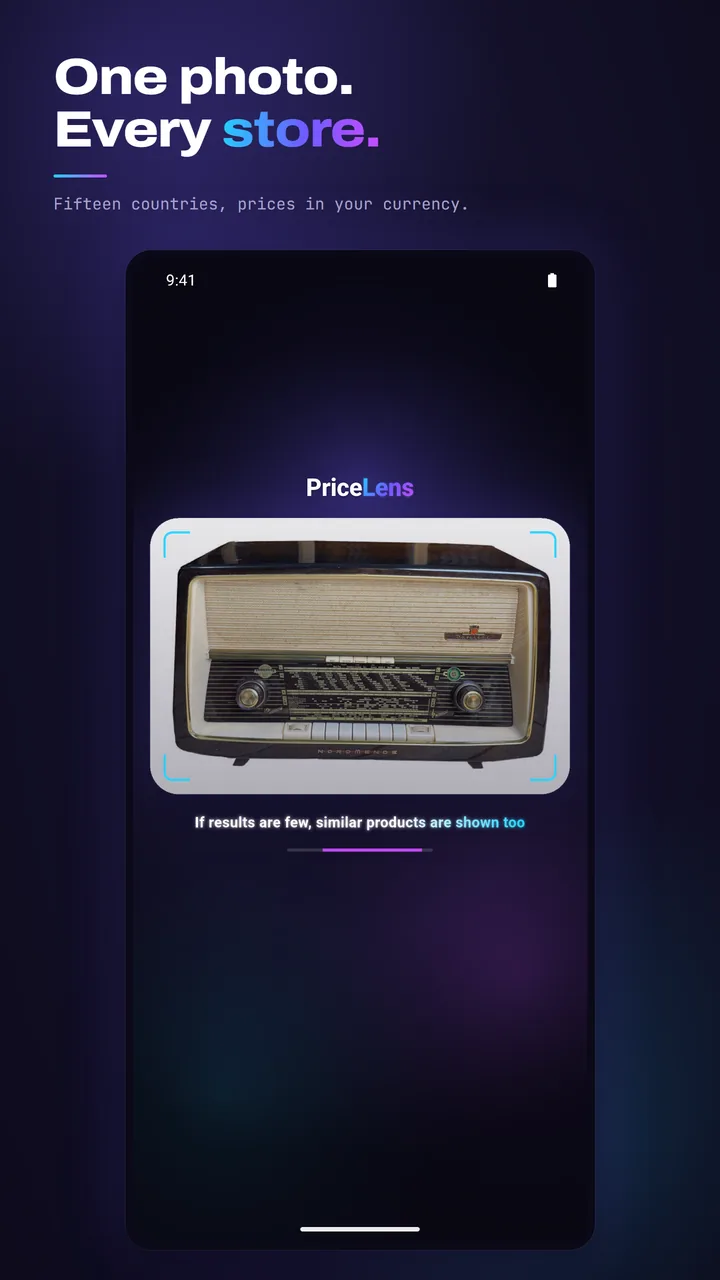
You don't have to wait for the entire search to finish before seeing anything. PriceLens can start showing results while the search is still running, and the list keeps filling in as more stores are checked.
8. What if you don't know the product's name?
This is exactly the situation PriceLens is built for. If you only know what a product looks like — not its brand, model, or official name — a photo is often the only starting point you have. Instead of guessing at search terms, you can point your camera at the product, or use a photo you already have, and let PriceLens identify it — brand and model when identifiable — and find real prices from there.
Can I find a product from a photo?
Yes. PriceLens is built specifically for this situation: you have a photo of a product, but you don't know its name, brand, or model. Instead of typing a search, you take a photo with your camera or choose one already saved in your gallery, and PriceLens analyzes the image directly. It looks at whatever is actually visible — a brand marking, model text, or the product's overall shape and design — to figure out what the product is. When a specific brand or model can be identified, PriceLens uses it; when it can't, it still identifies the general type of product (for example, a wireless mouse or a digital camera) and searches on that basis. Either way, you don't need to know anything about the product before you start — the photo itself is the starting point.
Do I need a barcode?
No. PriceLens is designed to work without a barcode and without you needing to know the product's name, brand, or model in advance. Traditional price-comparison tools usually require scanning a barcode or typing in a specific product name, which doesn't help if you don't have the packaging or only know what something looks like. PriceLens works differently: the photo itself is the search. You take a picture or pick one from your gallery, and PriceLens identifies the product directly from what's visible in it — a brand, a model, or its general type and design — then compares real prices across stores from there. No scanning, no typing, and no barcode required at any step of the process.
Can I find the price of a product from a picture?
Yes. Once PriceLens identifies the product from your photo, it searches real online stores for matching listings and collects the prices it finds. Results are sorted from cheapest to most expensive, with a quick summary of the lowest, highest, and average price so you can see the range at a glance. These are real, current store listings rather than estimates, though store inventory and pricing change constantly, so treat the results as a snapshot from the time of your search rather than a fixed price. PriceLens doesn't sell the product itself — once you find the listing you want, you go to that store's own page to complete the purchase. In short, you can go from not knowing what something is or costs to a ranked list of real prices, starting from nothing but a photo.
Can I use a photo from my gallery?
Yes — you can take a new photo or choose one you already have saved.
How do I buy the product once I find the cheapest listing?
PriceLens doesn't sell products itself. Once you find the result you want, you go to that store's page and complete the purchase there.
Is PriceLens free?
Yes — downloading PriceLens is free, and you get 1 free search every day, no purchase required. For more searches, you can buy affordable credit packs anytime inside the app (1 search = 1 credit). You sign in with your Google account to manage your credits and your daily free search.
PriceLens is available now on Google Play. The App Store (iOS) version is coming soon.